You can modify individual aliquots specimens or modify multiple aliquot specimens together.
Before you begin
All specimens to be modified must be from the same primary specimen.
About this task
Procedure
From the LDMS menu, click Specimen Management.
Locate the specimen(s) you want to modify.
Use filters from the left side of the screen to narrow down the
participants that are displayed.
Alternatively, click the dropdown next to Jump to
Participant and select Jump to
Specimen. Then enter the Global Specimen ID and click
Jump To.
Select the aliquot specimen(s) to modify.
To select multiple aliquot specimens, press and hold the Ctrl key. To select
multiple, contiguous specimens, press and hold the Shift key instead.
To the right of one of the selected specimen(s), click
Edit.
(When editing multiple specimens only) In the Edit
Aliquots window, select the check box next to any boxes you want
to change.
Modify the specimen information as needed.
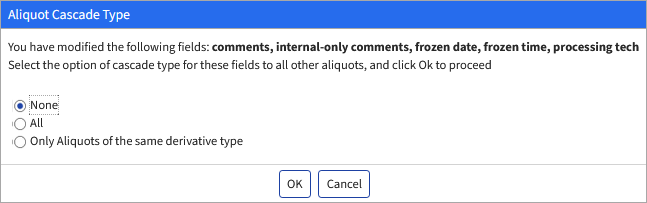
Optional: Making changes to Frozen Date, Frozen
Time, Processing Tech Initials,
Comments or Internal Only
Comments for any single aliquot will give the user the option to
cascade these changes to other aliquots. Changes can be cascaded to No other
aliquots, All aliquots, Only aliquots having the same derivative type. Select an
option and click OK.
Figure: The Aliquot Cascade Type Window
At the bottom of the Edit Aliquots window, click Save.